 RSS Feed
Debug Messages and Color Coding
Color Coding
Before Unreal 2 shipped, the message area was disabled to hide the debugging messages the game processes in real-time.
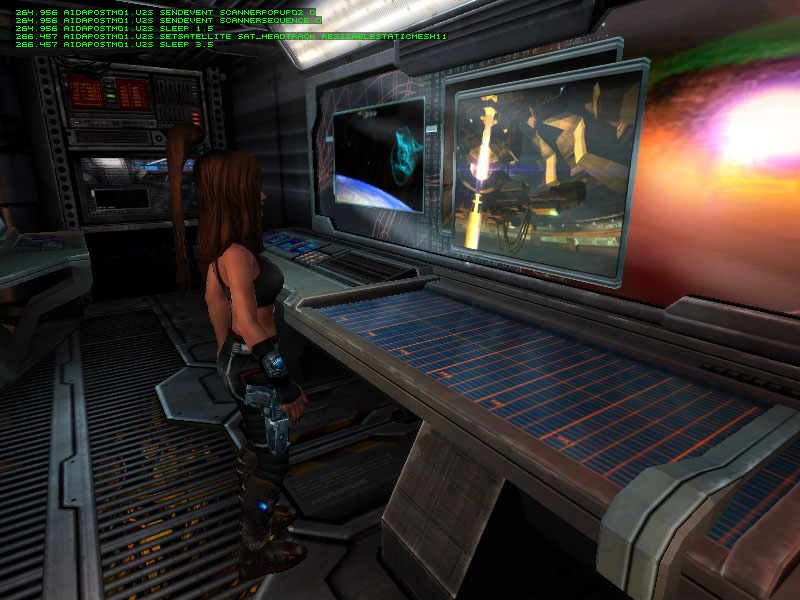
While developing for Unreal 2, these messages can be very useful and enabling them helps designers fix Pawn behaviour.
In the /Unreal2/UIScripts directory, find UI.ui and remove the "read only" attribute (which is set by default as the game is copied from a disc). Once this is done, open it with a text editor and search for this line:
;Component=Console.MessageArea
Delete the ";" character, which turns this line into an ignorable commentary. This will reenable the message area (seen in the screenshot above as green text at the top of the screen). Save the modified file.
Open User.ini file and set these two settings to false (they default to true in the shipped game):
bDisableErrorColors = false
bDisableErrorMessages = false
Save this file and launch your level. If an NPC encounters an issue, he will now turn a certain color, making it easy for you to spot problems.
Script Debugging
You can also debug .u2s scripts as seen above. To print out an AI script as it is executing, add the line "Debugmode XX" to the script. Using "Debugmode 11" is especially useful as it tells you every command an NPC is processing.
To better understand the syntax, load some of the existing scripts, (for example Script/Atlantis/AidaPostM00.u2s) and uncomment the Debugmode line. Save the file and play the first interlude to see what Aida is doing.
You can also enable these debug messages globally by editing this section of User.ini:
[U2AI.ScriptControllerBase]
DebugMode=0
//DebugMode=1 // show internal debug info
//DebugMode=2 // dump commands and log executed commands
//DebugMode=3 // 1+2
//DebugMode=4 // dump events
//DebugMode=8 // dump control flow jumps (gotos, calls, onevent etc.)
//DebugMode=11 // dump everything but events
//DebugMode=15 // dump everything
ErrorMessageFrequency=3.0 // rate at which script errors are logged to screen in-game
"Debugmode 0" is set by default. Set it to another value to get more feedback for every Pawn in the map. When building levels, "Debugmode 11" is probably all that is ever needed to debug scripts. There are additional settings in User.ini which can prove useful, especially when writing .uc code:
[Engine.LicenseeController]
DebugFlags=0
//DebugFlags=7 // anims
//DebugFlags=16 // basic AI (incl. state changes if bTrackStateChanges, etc.)
//DebugFlags=32 // attacks/weapons
//DebugFlags=64 // events
//DebugFlags=128 // movement
//DebugFlags=176 // all except anims and events
//DebugFlags=240 // all except anims
//DebugFlags=247 // all including anims
//DebugForced=true // show forced debug messages
bTrackStateChanges=false
//bTrackStateChanges=true // log gotostate/goto information
bDebugForced=false[U2AI.U2NPCController]
//bVisibleAI=true // show/hide AI intermediate/final destination actors[Engine.TriggerHelper]
//bDebugMode=true // log trigger debug info[U2.U2Pawn]
bDisableErrorColors=false
bDisableErrorMessages=false